Showing posts with label Android (operating system). Show all posts
Showing posts with label Android (operating system). Show all posts
Wednesday, September 16, 2015
Install Android Apps on PC using Andy Android Emulator without use internet
Install Android Apps on PC using Andy Android Emulator

Requirements and Installation
Andy is an Android emulator that runs on Windows 7 or 8 requiring a minimum of 3GB of RAM and up to 20GB of free disk space. The CPU of the machine running Andy must support virtualization. In the installation document found on Andy's FAQ page, Andy recommends using a neat tool called CPU-Z (download) to determine if virtualization is supported by your machine's CPU and enabled in BIOS settings.
I was able to download, install and run Andy without checking or changing my CPU's BIOS settings. So, based on this anecdotal evidence, if you have a fairly modern machine manufactured in the last 3 years or so, odds are good you will probably be able to do the same.
how to install andy on pc without use internet
this video help are install Andy Android Emulator
BY GK

Android Versions List And Details

The version history of the Android mobile operating system began with the release of the Android beta in November 2007. The first commercial version, Android 1.0, was released in September 2008. Android is under ongoing development by Google and the Open Handset Alliance (OHA), and has seen a number of updates to its base operating system since its initial release.

The most recent major Android update is Android 5.0 "Lollipop", which was released on November 3, 2014. Since April 2009, Android versions have been developed under a confectionery-themed code name and released in alphabetical order, beginning with Android 1.5 "Cupcake"; the earlier versions 1.0 and 1.1 were not released under specific code names:
Android Versions List
Alpha (1.0)
Android Versions List
Alpha (1.0)
First Version of Android.
There were at least two internal releases of the software inside Google and the OHA before the beta version was released in November 2007
There were at least two internal releases of the software inside Google and the OHA before the beta version was released in November 2007
Beta (1.1)
Android beta will generally have many more problems on speed and performance.
Cupcake (1.5)
Released on April 30, 2009.
Added auto-rotation option.
Copy and Paste feature added in the web browser.
Increased speed and performance but not upto required level.
Added auto-rotation option.
Copy and Paste feature added in the web browser.
Increased speed and performance but not upto required level.
Donut (1.6)
Released on September 15, 2009.
Voice search and Search box were added.
Faster OS boot times and fast web browsing experience.
Typing is quite slower.
Voice search and Search box were added.
Faster OS boot times and fast web browsing experience.
Typing is quite slower.
Eclair (2.0–2.1)
Released on October 26, 2009.
Bluetooth 2.1 support.
Improved typing speed on virtual keyboard, with smarter dictionary. no Adobe flash media support
Bluetooth 2.1 support.
Improved typing speed on virtual keyboard, with smarter dictionary. no Adobe flash media support
Froyo (2.2–2.2.3)
Support for Adobe Flash 10.1
Improved Application launcher with better browser
No internet calling.
Gingerbread (2.3–2.3.7)
Released on December 6, 2010.
Updated User Interface with high efficiency and speed
internet calling
One touch word selection and copy/paste.
New keyboard for faster word input.
More successful version of Android than previous versions.
not supports multi-core processors.
Honeycomb (3.0–3.2.6)
Support for multi-core processors
Ability to encrypt all user data.
This version of android is only available for tablets.
Ice Cream Sandwich (4.0–4.0.4)
Released on November 14, 2011.
Virtual button in the UI.
A new typeface family for the UI, Roboto.
Ability to shut down apps that are using data in the background.
Virtual button in the UI.
A new typeface family for the UI, Roboto.
Ability to shut down apps that are using data in the background.
Jelly Bean (4.1–4.3.1)
Google announced Android 4.1 (Jelly Bean) at the Google I/O conference on June 27, 2012. Based on Linux kernel 3.0.31, Jelly Bean was an incremental update with the primary aim of improving the functionality and performance of the user interface.Smoother user interface,
User-installable keyboard , maps Expandable notifications, Ability to turn off notifications on an application-specific basis Shortcuts and widgets can automatically be re-arranged or re-sized to allow new items to fit on home screens, Bluetooth data transfer for Android Beam.
User-installable keyboard , maps Expandable notifications, Ability to turn off notifications on an application-specific basis Shortcuts and widgets can automatically be re-arranged or re-sized to allow new items to fit on home screens, Bluetooth data transfer for Android Beam.
KitKat (4.4–4.4.4, 4.4W–4.4W.2)
Released on October 31, 2013Better Memory Management
Improved Google Now
Immersive Mode
Integration With Cloud Storage
Built-In Sensors
Lock Screen Art
Lollipop (5.0–5.1.1)
Released on November 12, 2014
Silent mode added after missing on Android 5.0General improvements in system stability
Improved RAM management
Fixes for sudden app closures
Improved battery management
Excessive consumption of network devices when used Wi-Fi fixed
Issues with wireless connections fixed
Problems with Okay Google function solved
Notifications problems solved
Some sound problems experience by certain devices fixed
Other improvements and changes
Changes in the Material Design color palette.
SHARE BY GK
Rooted BlueStacks App Player [Offline]

New Features
- Simple Launcher Interface
- SuperSu Support
- Import Windows Files directly from your PC to bluestacks
- Root Explorer Support
- Root Checker Support
Rooted BlueStacks App Player [Offline]
Android Application Development Ebook

Android is an open source and Linux-based operating system for mobile devices such as smartphones and tablet computers. Android was developed by the Open Handset Alliance, led by Google, and other companies.
This tutorial will teach you basic Android programming and will also take you through some advance concepts related to Android application development.
Android Application Development Ebook
what is oracle virtualbox
what is oracle virtualbox

Presently, VirtualBox runs on Windows, Linux, Macintosh, and Solaris hosts and supports a large number of guest operating systems including but not limited to Windows (NT 4.0, 2000, XP, Server 2003, Vista, Windows 7, Windows 8), DOS/Windows 3.x, Linux (2.4, 2.6 and 3.x), Solaris and OpenSolaris, OS/2, and OpenBSD.
VirtualBox is being actively developed with frequent releases and has an ever growing list of features, supported guest operating systems and platforms it runs on. VirtualBox is a community effort backed by a dedicated company: everyone is encouraged to contribute while Oracle ensures the product always meets professional quality criteria.
The VirtualBox User Manual is included in the VirtualBox binaries above. If, however, you would like to take a look at it without having to install the whole thing, you also access it here:
BY GK
Subway Surfers For PC


How to Install Subway Surfers?
- Download Subway Surfers from link below
- Install it.
- Run it & Click on Screen to start playing
- That’s all :) Enjoy.
System Requirements:
Subway Surfers For PC
- Intel Pentium 4 ( Dual Core or above ).
- RAM : 512 MB.
- Hard Disk: 70 MB.
- Graphics Card : 256 MB 64 bit Video Card.
- Windows XP/7/Vista/8.
Subway Surfers For PC
What's Rom/Firmware and How to Backup Android Rom/Firmware
To operate computers, it needs some required system software called Operating System. In short form it is known as OS. For desktop, Laptop & server operating systems are Windows, Mac OS X and Linux. So it's the same as phone and tablet. Most important examples about the operating system are Android, Apple iOS, Windows Phone 7, Blackberry OS, HP/Palm Web OS etc.
Part 1. What is Android ROM?
Technically, the ROM is stand for Read Only Memory. It indicates the internal memory or storage of a device that reserves the operating system instruction. During a simple operation, it never needs any modifications. That's because all instructions are stored in the Read Only Memory file.
It is non-rewritable function on CD or DVD that nobody can change it. If they changed, then the device behaves like malfunction.
It contrasts with Hard disk drives, solid state drives and regular state drives or regular flash storage devices that have access to the storage area gain the operating system files through personal computers which allow full read/write.
Part 2. What is Android Firmware?
The ROM (Read Only Memory) operating system that we discussed is also known as Firmware. Through the device, they have access to the users without any type of modification and they stay firm. Thus, it is known as Firmware.
* It's possible to modify the firmware, but it is not under the easy usage.
* Some devices use as storage set as read only through software protection and some devices used specialized hardware.
* Read only through the software protection can remove or overwrite without any help of specialized hardware.
* It is done by only using the software written for the purpose and often it needs no connection to a computer.
So, Operating System and firmware both are the same thing and these can use any of them to such devices.
Part 3. How to Backup ROM in Android
 1. Root your Android device and launch ClockWorkMod Recovery website.
Part 4. Backup Android Firmware/Stock ROM to PC
You can backup stock ROM on your Android device with Kies and save the current ROM on your Android device.
Now you should follow the steps:
1. Browse Windows Explorer (on computer), enable hidden folders, files and drives.
2. Connect the Android device to computer. Then, it'll be recognized by Kies and Kies will download all the files of recent firmware.
3. All downloading files will load in tmp*******. temp (*=some letters and numbers) named file in the temporary directory of your computer.
4. Open run and type temp and click Okay. The temporary file will appear in a new window.
5. Completing downloading in KIES, locate the temp*******.temp with a folder name, zip folder extension in the temporary files window that you previously opened.
6. It means firmware upgrade begins in Kies.
7. After locating it, copy all the files in your Android device before finishing the upgrade firmware, otherwise the file will be gone.
So, this is the way you to approach to get success.
Operating System also needs to make functional all new electronics products like Digital Televisions, Microwave ovens. Load the OS (Operating System) and run it in its specific way of steps with defined manner and that known us as ROM.
Technically, the ROM is stand for Read Only Memory. It indicates the internal memory or storage of a device that reserves the operating system instruction. During a simple operation, it never needs any modifications. That's because all instructions are stored in the Read Only Memory file.
It is non-rewritable function on CD or DVD that nobody can change it. If they changed, then the device behaves like malfunction.
It contrasts with Hard disk drives, solid state drives and regular state drives or regular flash storage devices that have access to the storage area gain the operating system files through personal computers which allow full read/write.
Part 2. What is Android Firmware?
The ROM (Read Only Memory) operating system that we discussed is also known as Firmware. Through the device, they have access to the users without any type of modification and they stay firm. Thus, it is known as Firmware.
* It's possible to modify the firmware, but it is not under the easy usage.
* Some devices use as storage set as read only through software protection and some devices used specialized hardware.
* Read only through the software protection can remove or overwrite without any help of specialized hardware.
* It is done by only using the software written for the purpose and often it needs no connection to a computer.
So, Operating System and firmware both are the same thing and these can use any of them to such devices.

2. Before starting, you need to check whether your device support or not according to the list of mobile phones.
3. Go to Google Play and search ROM Manager.
4. Install it.
5. Run ROM Manager.
6. Select "Flash ClockWorkMod Recovery" option.
7. Follow the Prompts select "Backup Current ROM".
8. When Backup completed, reboot your Android device.
9. Now you need to restore this. Open the application again and select "Manage and Restore Backup" and then restore.
10. You will get new OS when you reboot the device.
That's the tutorila on how to backup Android ROM.
3. Go to Google Play and search ROM Manager.
4. Install it.
5. Run ROM Manager.
6. Select "Flash ClockWorkMod Recovery" option.
7. Follow the Prompts select "Backup Current ROM".
8. When Backup completed, reboot your Android device.
9. Now you need to restore this. Open the application again and select "Manage and Restore Backup" and then restore.
10. You will get new OS when you reboot the device.
That's the tutorila on how to backup Android ROM.
Before backup you need two things:
1. Kies desktop application. (Installed in computer)
2. A software firmware. (Updated version)
1. Kies desktop application. (Installed in computer)
2. A software firmware. (Updated version)
Now you should follow the steps:
1. Browse Windows Explorer (on computer), enable hidden folders, files and drives.
2. Connect the Android device to computer. Then, it'll be recognized by Kies and Kies will download all the files of recent firmware.
3. All downloading files will load in tmp*******. temp (*=some letters and numbers) named file in the temporary directory of your computer.
4. Open run and type temp and click Okay. The temporary file will appear in a new window.
5. Completing downloading in KIES, locate the temp*******.temp with a folder name, zip folder extension in the temporary files window that you previously opened.
6. It means firmware upgrade begins in Kies.
7. After locating it, copy all the files in your Android device before finishing the upgrade firmware, otherwise the file will be gone.
So, this is the way you to approach to get success.
SHARE BY GK
android mobile code
*#06# (Display IMEI number)
*#1234# (Display current firmware)
*#*#4636#*#* (Diagnostic and general settings mode)
*#*#7780#*#* (Factory soft reset)
or *#7780#
*2767*3855# (Factory hard reset to ROMfirmware default settings)
*2767*4387264636# (To display product code)
*#272*imei#* (Display/change CSC code)
or *#272*HHMM#*
*#*#1472365#*#* (GPS test settings)
*#*#197328640#*#* (Service mode main menu)
*#12580*369# (SW & HW Info)
*#232337# (Bluetooth Address)
*#232331# (Bluetooth Test Mode)
*#232338# (WLAN MAC Address)
*#0228# (ADC Reading)
*#32489# (Ciphering Info)
*#2263# (RF Band Selection)
*#9090# (Diagnostic ConfiguratioN)
*#7284# (USB I2C Mode Control)
*#232339# (WLAN Test Mode)
*#0842# (Vibra Motor Test Mode)
*#0782# (Real Time Clock Test)
*#0673# (Audio Test Mode)
*#0*# (General Test Mode)
*#872564# (USB Logging Control)
*#4238378# (GCF Configuration)
*#0283# (Audio Loopback Control)
*#1575# (GPS Control Menu)
*#3214789650# (LBS Test Mode)
*#745# (RIL Dump Menu)
*#03# (NAND Flash S/N)
*#0589# (Light Sensor Test Mode)
*#0588# (Proximity Sensor Test Mode)
*#273283*255*3282*# (Data Create Menu)
*#34971539# (Camera Firmware Update)
*#526# (WLAN Engineering Mode)
*#746# (Debug Dump Menu)
*#9900# (System Dump Mode)
*#44336# (Sofware Version Info)
*#273283*255*663282*# (Data Create SD Card)
*#3282*727336*# (Data Usage Status)
*#7594# (Remap Shutdown to End Call TSK)
*#0289# (Melody Test Mode)
*#2663# (TSP / TSK firmware update)
*#528# (WLAN Engineering Mode)
*#7412365# (Camera Firmware Menu)
or *#*#34971539#*#*
*#80# (Unknown)
*#07# (Test History)
*#3214789# (GCF Mode Status)
*#272886# (Auto Answer Selection)
*#8736364# (OTA Update Menu)
*#301279# (HSDPA/HSUPA Control Menu)
*#7353# (Quick Test Menu)
*2767*4387264636# (Sellout SMS / PCODE view)
*#7465625# (View Phone Lock Status)
*7465625*782*# (Configure Network Lock NSP)
*7465625*27*# (Insert Network Lock Keycode NSP/CP)
#7465625*27*# (Insert Content Provider Keycode)
#7465625*782*# (Insert Partitial Network Lock Keycode)
*7465625*77*# (Insert Network Lock Keycode SP)
#7465625*77*# (Insert Operator Lock Keycode)
*7465625*638*# (Configure Network Lock MCC/MNC)
#7465625*638*# (Insert Network Lock Keycode)
BY GK
computer knowledge
*#1234# (Display current firmware)
*#*#4636#*#* (Diagnostic and general settings mode)
*#*#7780#*#* (Factory soft reset)
or *#7780#
*2767*3855# (Factory hard reset to ROMfirmware default settings)
*2767*4387264636# (To display product code)
*#272*imei#* (Display/change CSC code)
or *#272*HHMM#*
*#*#1472365#*#* (GPS test settings)
*#*#197328640#*#* (Service mode main menu)
*#12580*369# (SW & HW Info)
*#232337# (Bluetooth Address)
*#232331# (Bluetooth Test Mode)
*#232338# (WLAN MAC Address)
*#0228# (ADC Reading)
*#32489# (Ciphering Info)
*#2263# (RF Band Selection)
*#9090# (Diagnostic ConfiguratioN)
*#7284# (USB I2C Mode Control)
*#232339# (WLAN Test Mode)
*#0842# (Vibra Motor Test Mode)
*#0782# (Real Time Clock Test)
*#0673# (Audio Test Mode)
*#0*# (General Test Mode)
*#872564# (USB Logging Control)
*#4238378# (GCF Configuration)
*#0283# (Audio Loopback Control)
*#1575# (GPS Control Menu)
*#3214789650# (LBS Test Mode)
*#745# (RIL Dump Menu)
*#03# (NAND Flash S/N)
*#0589# (Light Sensor Test Mode)
*#0588# (Proximity Sensor Test Mode)
*#273283*255*3282*# (Data Create Menu)
*#34971539# (Camera Firmware Update)
*#526# (WLAN Engineering Mode)
*#746# (Debug Dump Menu)
*#9900# (System Dump Mode)
*#44336# (Sofware Version Info)
*#273283*255*663282*# (Data Create SD Card)
*#3282*727336*# (Data Usage Status)
*#7594# (Remap Shutdown to End Call TSK)
*#0289# (Melody Test Mode)
*#2663# (TSP / TSK firmware update)
*#528# (WLAN Engineering Mode)
*#7412365# (Camera Firmware Menu)
or *#*#34971539#*#*
*#80# (Unknown)
*#07# (Test History)
*#3214789# (GCF Mode Status)
*#272886# (Auto Answer Selection)
*#8736364# (OTA Update Menu)
*#301279# (HSDPA/HSUPA Control Menu)
*#7353# (Quick Test Menu)
*2767*4387264636# (Sellout SMS / PCODE view)
*#7465625# (View Phone Lock Status)
*7465625*782*# (Configure Network Lock NSP)
*7465625*27*# (Insert Network Lock Keycode NSP/CP)
#7465625*27*# (Insert Content Provider Keycode)
#7465625*782*# (Insert Partitial Network Lock Keycode)
*7465625*77*# (Insert Network Lock Keycode SP)
#7465625*77*# (Insert Operator Lock Keycode)
*7465625*638*# (Configure Network Lock MCC/MNC)
#7465625*638*# (Insert Network Lock Keycode)
BY GK
computer knowledge
Tuesday, September 15, 2015
Hack Ex - Simulator Virtual Hacking Game for Android By Byeline

This is not real hacking. It's only a game.
Features:
- Quick to learn. No real hacking knowledge required.
- Upgrade your virtual device to improve processing speed.
- Upgrade your utility apps to better your defenses and attack with more success.
- Hack into players’ virtual bank accounts and transfer their funds to your account.
- Upload viruses on other players’ devices to earn you money and spy on their activity.
- Hide your activity from your in-game logs or manipulate others.
- Add your friends to your in-game Contacts and transfer funds to them.
Note: This game requires an internet connection.
Hack Ex - Simulator Virtual Hacking Game.
Share your PC’s Internet with an Android Phone over USB
Most of us must be very familiar with USB or WiFi tethering as a method of sharing the Internet connection from an android phone with other devices. But fairly a very few of us are familiar with the opposite process which is known as Reverse tethering .
Using reverse tethering you can share your Computer’s internet connection with your Android phone through an USB data cable. This is in fact a very useful feature in case you don’t have WiFi router to share your PC’s internet connection . Continue reading to find out how you can use reverse tethering to share your Computer’s internet connection with your android phone via an USB cable.
What do you need ?
In order to be able to perform reverse tethering you will need a Rooted android phone, which is a also a major reason why reverse tethering is not much popular among android new users. If you have a rooted android phone, you can proceed further with this guide and download the following prerequisites required further in this guide.
Android Reverse Tethering tool is an free windows utility which makes use of ADB ( Android debug bridge ) to share your Computer’s internet connection with your android phone over an USB data cable . You can download it from this link , or visit the link provided above for the latest version of the utility .
How to share your PC’s internet connection with your Android phone over USB
Step 1: Connect your Android phone with your PC using an USB data cable and ensure that USB debugging is enabled on your phone . ( Settings > Applications > Development > USB Debugging > Turn On )

Step 2: Extract the downloaded zip file and run the AndroidTool.exe file

Step 3: From the Android reverse tethering utility , select your phone from the “Select a device “ drop down box and then from the “ Select DNS to use “ dropdown box , select a DNS ( Choose anything apart from 192.168.1.1 ) .

Step 4: Click on the Connect button to start the reverse tethering process . The utility will then connect with your android phone and install the required apps on your phone . If the utility crashes simply run it over again .

Step 5: After the required apps have been installed on your phone , You will be prompted to grant root access to the USB tunnel app . Tap on “Grant” to provide root access to the app and you can access your Computer’s internet connection on your phone
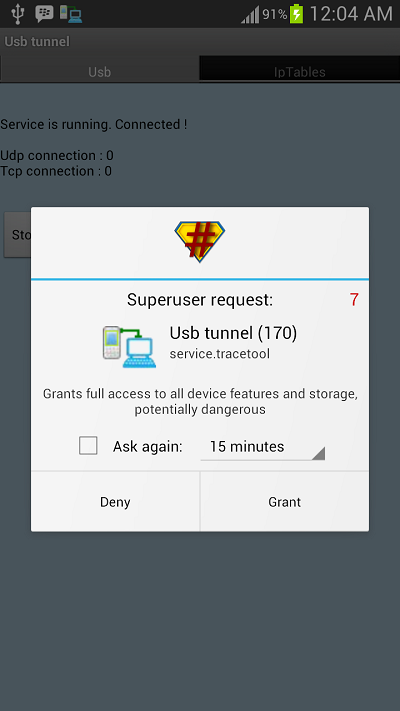
Thats it and now you will be able to access your Computer’s internet on your Android phone and even all your android apps would be able to access it too .
What do you need ?
In order to be able to perform reverse tethering you will need a Rooted android phone, which is a also a major reason why reverse tethering is not much popular among android new users. If you have a rooted android phone, you can proceed further with this guide and download the following prerequisites required further in this guide.
1.Drivers for your Android phone
Hackode The hacker's Toolbox Android app

Hackode : The hacker's Toolbox is an application for penetration tester, Ethical hackers, IT administrator and Cyber security professional to perform different tasks like reconnaissance, scanning performing exploits etc. This Application developed by Ravi Kumar.
This Application contains different tools like:
* Reconnaissance
* Google Hacking
* Google Dorks
* Whois
* Scanning
* Ping
* Traceroute
* DNS lookup
* IP
* MX Records
* DNS Dig
* Exploits
* Security Rss Feed
This Application is still in beta version. We will be releasing soon its full version with some more better tools and utilities.
* Google Dorks
* Whois
* Scanning
* Ping
* Traceroute
* DNS lookup
* IP
* MX Records
* DNS Dig
* Exploits
* Security Rss Feed
This Application is still in beta version. We will be releasing soon its full version with some more better tools and utilities.
Hackode The hacker's Toolbox.
How to install BlueStacks App Player and download.

Bluestacks is an American tech company that produces the BlueStacks App Player and other cloud-based cross-platform products. The BlueStacks App Player is designed to enable Android applications to run on Windows PCs and Macintosh computers.
How to install BlueStacks App Player for watch this video.
BlueStacks App Player download
SHARE BY GK.
computer knowlege
computer knowlege
How to Install Android in VirtualBox
How to Install Android in VirtualBox

Want to run Android on your PC? The Android-x86 Project has ported Android to the x86 platform from ARM. Android-x86 can be installed on netbooks with supported hardware, but you can also install Android in VirtualBox.
Android can be run as just another virtual machine, like you would run a Windows or Linux virtual machine. This allows you to play with the Android interface and install apps in a full Android environment on your PC.
What You’ll Need
Before you can get started, you’ll need both VirtualBox and an Android-x86 ISO to install inside VirtualBox.
install VirtualBox: Download Oracle VM VirtualBox load and install VirtualBox if you don’t already have it installed
Download an Android-x86 ISO: You can find the latest Android-x86 ISO files at Google Code.
Creating an Android Virtual Machine
You can now open VirtualBox and c![]() reate a new virtual machine by clicking the New button. Go through the wizard and configure your virtual machine with the following settings:
reate a new virtual machine by clicking the New button. Go through the wizard and configure your virtual machine with the following settings:

Next, power on your new virtual machine and point VirtualBox at the Android-x86 ISO file you downloaded. The installer will boot up inside your virtual machine.
Select the Installation option and press Enter to continue.

We’ll need to create a partition for the Android system. Select the Create/Modify partitionsoption and press Enter.

Select the New option with your arrow keys and press Enter to create a new partition in the free space.


Highlight the Bootable option and press Enter to make the partition bootable, then select theWrite option and press Enter to write your changes to the virtual disk. You’ll have to type yesand press Enter to confirm writing the changes.

Activate the Quit option and you’ll go back to the Choose Partition screen.This time, you’ll see the partition you created at the top of the screen. Select the partition and press
Enter to install Android to it.


Choose Yes to install the GRUB bootloader, and then select Yes to install the /system directory as read-write.


You’ll boot into a live Android environment, complete with Google apps like Gmail, Maps, and the Play Store for installing other apps.
Android is primarily designed for touch input, but it can also be used with a mouse and keyboard — this means that your computer’s mouse and keyboard can function as serviceable input devices. Just don’t try doing anything you need multi-touch for
Want to run Android on your PC? The Android-x86 Project has ported Android to the x86 platform from ARM. Android-x86 can be installed on netbooks with supported hardware, but you can also install Android in VirtualBox.
Android can be run as just another virtual machine, like you would run a Windows or Linux virtual machine. This allows you to play with the Android interface and install apps in a full Android environment on your PC.
What You’ll Need
Before you can get started, you’ll need both VirtualBox and an Android-x86 ISO to install inside VirtualBox.
install VirtualBox: Download Oracle VM VirtualBox load and install VirtualBox if you don’t already have it installed
Download an Android-x86 ISO: You can find the latest Android-x86 ISO files at Google Code.
Creating an Android Virtual Machine
You can now open VirtualBox and c
Next, power on your new virtual machine and point VirtualBox at the Android-x86 ISO file you downloaded. The installer will boot up inside your virtual machine.
Select the Installation option and press Enter to continue.
Choose the Primary option and press Enter, then press Enter again to have the partition take up th the entire size of the virtual disk you created.
Activate the Quit option and you’ll go back to the Choose Partition screen.This time, you’ll see the partition you created at the top of the screen. Select the partition and press
Enter to install Android to it.
Select the ext3 file system, and then select Yes to format the partition.
Once you’re done, you can remove the ISO file and reboot your virtual machine.
Android should boot up like any other operating system would in your virtual machine. As with an Android smartphone or tablet, you’ll have to go through the setup process and optionally provide Google account details. Skip the Wi-Fi setup screen — Android will use your virtual machine’s standard Internet connection.
If your mouse cursor doesn’t work, click the Machine menu and select the Disable Mouse Integration option. Click inside the virtual machine and you’ll see the mouse cursor. Press the host key displayed at the bottom-right corner of the virtual machine window (default key: Right Ctrl) to release the to release the mouse cursor from the virtual machine.
You’ll boot into a live Android environment, complete with Google apps like Gmail, Maps, and the Play Store for installing other apps.
Android is primarily designed for touch input, but it can also be used with a mouse and keyboard — this means that your computer’s mouse and keyboard can function as serviceable input devices. Just don’t try doing anything you need multi-touch for

Subscribe to:
Posts (Atom)